The Plan and billing screen
Your agency's plan and its limits, the next invoice, invoices to pay, usage this month and every invoice from the platform, on one screen.
Plan and billing is where the agency owner manages the subscription the agency pays for: the plan, the billing cycle, the invoices and the email they go to. Open it from Settings → Plan and billing.
Anyone who can open Settings can see this screen. Changing the plan, cancelling, paying and editing the billing email need the permission Manage the plan and pay invoices, which only the Owner role has by default. Without it, the screen says Only the account owner can change the plan, cancel or pay invoices. You can see everything here. and the buttons are greyed out.
What you see
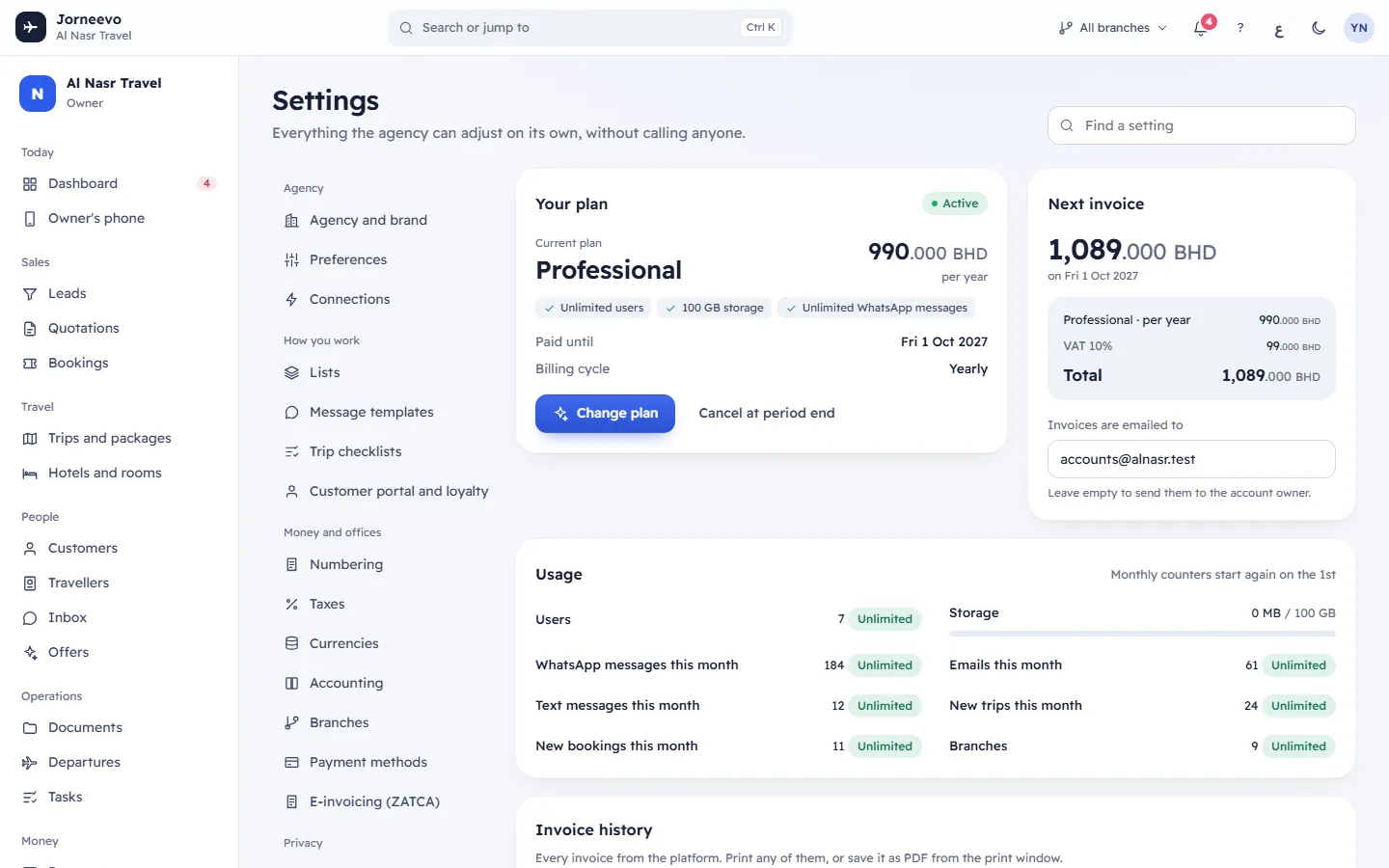
Your plan
- A chip with the state of the subscription (see Statuses below). During the trial it also shows the days left, for example Trial · 9 days left.
- Current plan: the plan's name and its price per month or per year.
- The plan's limits as small tags, for example 5 users, 2 GB storage, 3 branches or Unlimited bookings.
- Trial ends: the last day of the free trial and the days left (only during the trial).
- Paid until: the date your subscription is paid up to. It reads Ends on when you have cancelled.
- Billing cycle: Monthly or Yearly (shown for every account).
- A note when something is planned for the end of the period:
- Changes to … on …: a smaller plan (or another cycle) you chose starts on that date. Press Keep my current plan next to it to undo the change.
- Billing switches to yearly on … (or monthly): only the cycle changes on that date. Press Keep my current cycle to undo it.
- Your plan is set to end on …. Reactivate to carry on without a break.: you cancelled.
- Billed by arrangement with the platform: there is no automatic billing cycle on this account.: the platform bills you by hand, so no invoice is issued automatically.
- The buttons: Change plan (Choose a plan when the agency has none yet), and either Cancel at period end or Reactivate. Cancel at period end is not offered during the trial or while the account is paused. Reactivate also shows after the subscription ended (chip Cancelled).
When the agency has no plan, the card shows No plan yet and Pick a plan to get started.
Next invoice
- The amount and the date of the next invoice, then the plan line (plan name and cycle), the tax line (tax name and rate) and the Total. The tax is set by the platform; it is 0% unless the platform charges tax.
- Nothing scheduled when no invoice is due, with Your first invoice comes when the trial ends. during the trial, or Billed by arrangement with the platform. for accounts billed by hand.
- No more invoices after you cancelled at period end, and while the subscription has ended.
- Invoices are emailed to: the billing email. Leave empty to send them to the account owner. When you change
it, a Save button appears (or press
Enter). The message Billing email saved confirms it.
Invoices to pay
Shown only when an invoice is waiting. The chip counts them; it is red when one of them is overdue.
- Each invoice: its number and description, Due … (or Was due … when the date has passed), the amount, a printer button and Pay now.
- Under the list: Pay by card through … with the card brands the platform's payment gateway accepts.
Usage
One meter per plan limit: Users, Storage, WhatsApp messages this month, Emails this month, Text messages this month, New trips this month, New bookings this month and Branches (the branches switched on).
- Each meter shows what you used and the limit, for example 38 / 50, or Unlimited when the plan has no limit.
- From 80% the bar turns amber with …% used.; at the limit it turns red with Over the limit of your plan. Owners also see Upgrade for more, which opens Change plan.
- Monthly counters start again on the 1st: the five monthly meters go back to zero on the first of each month.
See Plan limits and how usage is counted for how each one is counted.
Invoice history
Every invoice from the platform. Print any of them, or save it as PDF from the print window.
The table shows Invoice, Date, Description, Period, Total and Status, with Pay (for invoices still due) and Print. With no invoices yet it shows No invoices yet. Descriptions the platform writes, such as Growth plan, monthly, show in the language of your screen; invoices the platform typed by hand keep their text as typed.
If the screen cannot load, it shows Billing could not be loaded with Try again.
What you can do here
- Change the plan or the billing cycle, and pay the invoice an upgrade creates: Change your plan and pay the invoice.
- Pay an invoice: press Pay now or Pay. The secure invoice page opens: Pay your subscription invoice.
- Print an invoice or save it as PDF: press Print (or the printer button). It opens in the language of your screen.
- Cancel at the end of the period: press Cancel at period end, then Cancel the plan in the window Cancel at the end of this period?. Everything keeps working until the paid-up date. The message Your plan ends at the end of this period confirms it.
- Undo a cancellation before the date: press Reactivate. The message Welcome back. Your plan carries on. confirms it.
- Restart after the subscription ended: press Reactivate, then confirm Reactivate your plan?. A new period of the current plan starts today with an invoice for the plan price (plus tax), and the account opens at once. Pay the invoice by its due date. On the free plan there is no invoice.
- Undo a scheduled smaller plan or cycle change: press Keep my current plan (or Keep my current cycle). The message You stay on your current plan confirms it.
- Change where invoices are emailed: edit Invoices are emailed to and press Save.
Statuses
The chip on Your plan:
| Chip | What it means |
|---|---|
| Trial | The free trial is running. The first invoice comes when it ends (paid plans only). |
| Active | The subscription is paid up and everything works. |
| Payment overdue | An invoice passed its due date unpaid. Everything still works, and a red bar asks you to pay. |
| Paused | The account is paused: only this screen opens until the invoice is paid. See Account paused. |
| Cancelling | You chose Cancel at period end. It works until the paid-up date. |
| Cancelled | The subscription ended at the end of the period, as you asked. The account is paused until you press Reactivate. |
Each invoice:
| Status | What it means |
|---|---|
| Due | Issued and waiting for payment; the due date has not passed. |
| Overdue | The due date passed and it is not paid. |
| Paid | Paid online, or marked paid by the platform. |
| Cancelled | Cancelled by the platform, or replaced by a new invoice after an upgrade. Nothing to pay. |
Note
This screen stays open even when the account is paused, so the owner can always see and pay what is due.
Related articles
- How your plan and billing workTrial, monthly or yearly renewals, due dates and grace days, what happens when a payment is late, and the bar each state shows.
- Change your plan and pay the invoiceMove to a bigger or smaller plan, or between monthly and yearly billing, see the price first, and pay the upgrade invoice by card.
- Plan limits and how usage is countedEach limit of your plan (users, branches, storage, messages, new trips and bookings), how it is counted, and the message at the limit.
- Pay your subscription invoiceOpen the link in the invoice email, check the invoice and pay it by card. No sign-in is needed, and a paused account opens again at once.
- Plan and billing: common questionsWho can pay, receipts and tax invoices, the billing email, downgrading with too many users, your data when paused and the end of the trial.