Confirmation windows and pop-up messages
How confirmation windows, side panels, menus, lists, date pickers and the messages at the bottom of the screen work everywhere in the app.
Every screen uses the same windows, panels and messages. Once you know how they behave on one screen, you know them everywhere.
What you see
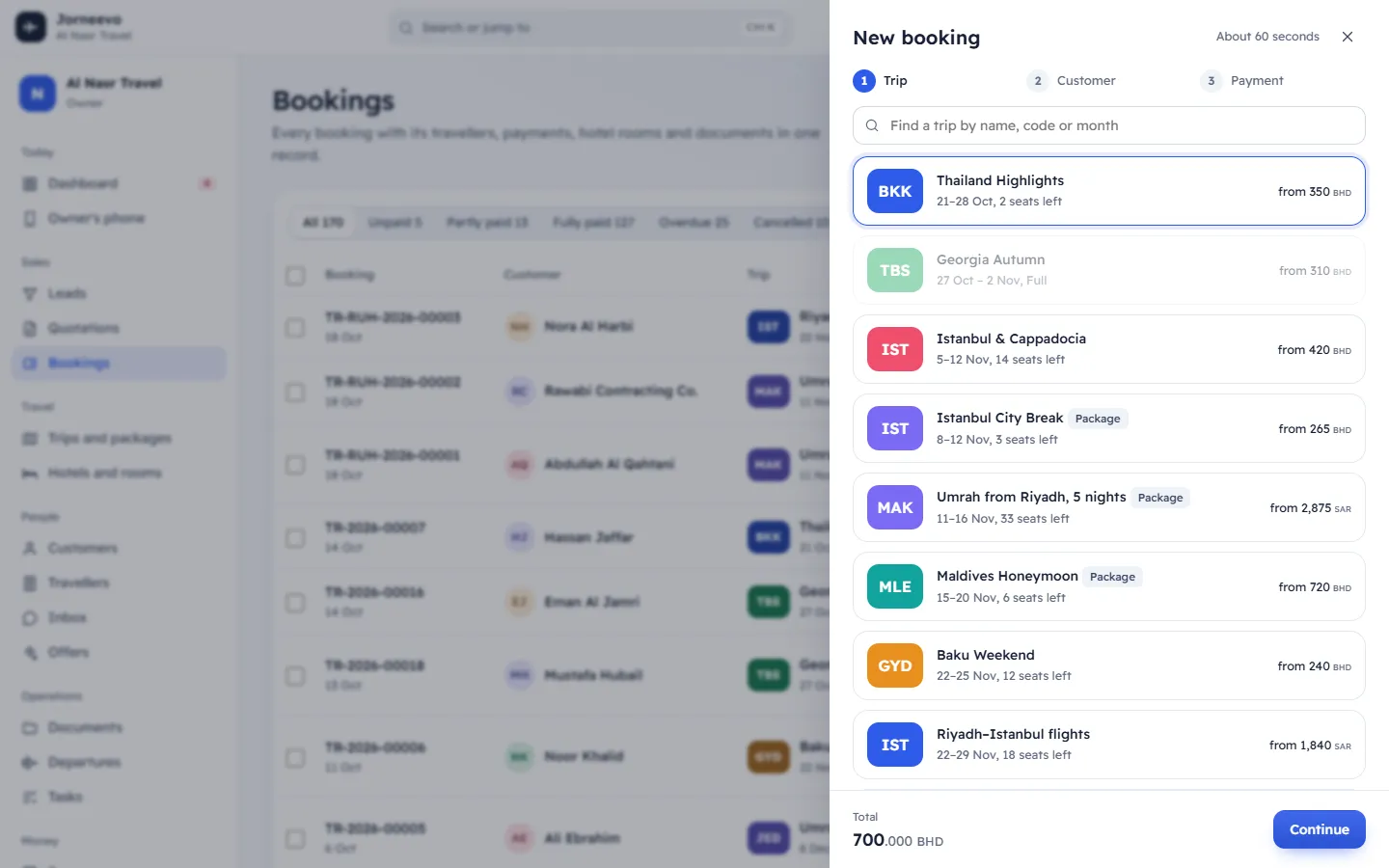
Confirmation windows
Before an action that is hard to undo, such as deleting a lead or a quotation, a window asks you to confirm. It says what will happen, with two buttons: Cancel and the action, for example Delete.
- A red action button means the action removes something or cannot be undone. For these, Cancel is selected
first, so pressing
Enterby mistake does nothing. Esc, or a click outside the window, is the same as Cancel.
Messages at the bottom of the screen
After most actions, a short message appears at the bottom of the screen, for example Lead added or Quotation saved.
- A normal message stays about 3 seconds. An error is red and stays 5 seconds.
- Up to three messages show at a time. The same message twice does not stack: it only stays longer.
- Hold the mouse over a message (or move to it with the keyboard) to keep it on the screen while you read it.
- Some messages have a button, such as Undo, Open or Print receipt. Press it before the message goes.
- Dismiss (the ✕) closes a message at once.
Errors explain what went wrong in your language, for example Enter a name. See Error messages: connection, forms and general for the messages that can appear on any screen.
Side panels and windows
Forms and details often open in a panel that slides in from the side, or in a window in the middle of the screen.
- Close (the ✕), or
Esc, closes the panel or window on top. - While a panel is open,
Tabmoves only through its fields and buttons. - Closing a form without pressing its save button keeps nothing you typed in it.
Field errors
When something in a form is missing or wrong, the form shows Some fields need attention and each field with a problem gets its own message under it, for example Enter a name or Invalid email. Fix those fields and save again.
Menus
The More actions button (⋮) opens a short menu of less common actions, such as Duplicate or Delete. Move
through it with ↑ and ↓, and press Enter to choose. Actions you are not allowed to use are not shown, or are
greyed out with a short reason.
Lists to choose from
Long lists, such as customers, trips or countries, can be searched: start typing in Type to search or Search the list. No matches means nothing in the list matches what you typed.
Date picker
Date fields show Pick a date when empty. Open the Calendar to choose a day:
- Previous month and Next month move a month at a time; you can also choose the Month and Year.
- Today jumps to today; Clear empties the date.
- On the keyboard: the arrow keys move a day or a week,
PageUpandPageDowna month (withShift, a year), andEnterpicks the day.
Tip
Most buttons show a short tip when you hold the mouse over them. Buttons with a keyboard shortcut say so, for example Shortcut: N.
Related articles
- How the app is organisedWhat each screen is for, how a lead becomes a quotation, a booking, payments and an invoice, and the patterns every screen shares.
- Error, offline and "page not found" screensWhat the system shows when a screen fails, the address is wrong, the internet drops or your session ends, and what to do each time.
- Error messages: connection, forms and generalMessages that can appear on any screen, such as connection problems, form field checks, missing records and addresses, and what to do.
- Keyboard shortcutsEvery keyboard shortcut in the agency app, from Ctrl K search and N for new records to the keys in lists, the inbox, hotels and settings.