Customer portal and loyalty
Turn the customer app on, choose which trips customers can book in it, and set the loyalty points, customer credit and inbox quick replies.
Customer portal and loyalty sets up the customer account: the app where your customers sign in to see their trips, payments, points and offers, book trips and chat with you. Here you also set the points programme, customer credit and the quick replies your team uses in the inbox. Open it from Settings → Customer portal and loyalty.
Every change is saved at once, with Setting saved. Number boxes save when you leave them or press Enter; a
value that is not allowed puts the old one back.
What you see
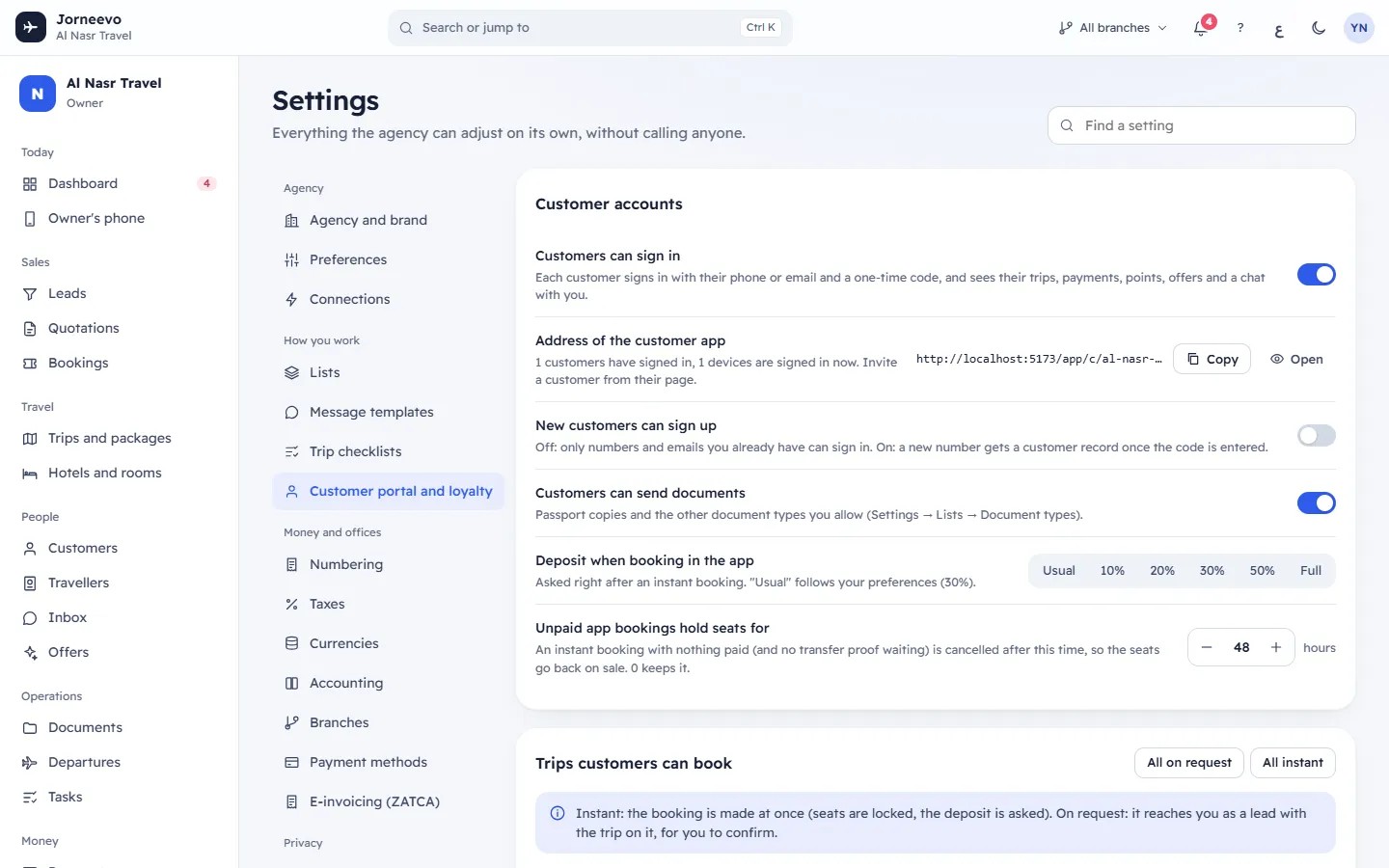
Customer accounts
| Setting | What it does | Default and limits |
|---|---|---|
| Customers can sign in | Each customer signs in with their phone or email and a one-time code, and sees their trips, payments, points, offers and a chat with you. | On |
| Address of the customer app | The link to your customer app, with Copy and Open. Under it: how many customers have signed in and how many devices are signed in now. Invite a customer from their page. | — |
| New customers can sign up | Off: only phone numbers and emails you already have can sign in. On: a new number gets a customer record once the code is entered. | Off |
| Customers can send documents | Customers send passport copies and the other document types you allow (Settings → Lists → Document types). | On |
| Deposit when booking in the app | Asked right after an instant booking. Usual follows the usual deposit in Preferences. | Usual; or 10%, 20%, 30%, 50%, Full |
| Unpaid app bookings hold seats for | An instant booking with nothing paid, and no transfer proof waiting, is cancelled after this time so the seats go back on sale. 0 keeps it. | 48 hours; 0 to 720 |
Customers can send documents is the same setting as Customers can upload documents in Settings → Preferences. Turning either off stops uploads on both the customer trip page and the customer account.
Trips customers can book
Your upcoming trips, the next departures first. Each row shows the trip's picture (or its code), its name and date, and a choice of three:
- Hidden: the trip is not in the app.
- On request: the customer's booking reaches you as a lead with the trip on it, for you to confirm.
- Instant: the booking is made at once: the seats are locked and the deposit is asked.
A draft trip shows draft, not shown until published: it appears in the app only once you publish it. The camera button adds the Picture shown in the app (JPEG, PNG or WebP); Picture saved confirms it. Each change shows Trip updated.
All on request and All instant open every published trip in the app at once, with Published trips are open in the app. With no upcoming trip, the card shows No upcoming trips yet.
Changing trips here needs the permission Build and publish trips.
Loyalty points
Customers earn points turns the programme on (off by default). Once on, it shows since when it runs: points are never given for trips before that day. The other settings show only while it is on:
| Setting | What it does | Default and limits |
|---|---|---|
| Points earned | Points for each 1 unit of your main currency paid. Payments in another currency are converted with your exchange rates. | 1; 0 to 10,000 |
| Points per currency | A fixed rate for payments in one currency instead of converting. Type the three-letter code and the points per 1, then Add; × removes a rate. | None; 0 to 10,000 per 1 |
| When points are earned | On payment: as soon as money is received (refunds take them back). After the trip: once the trip is over, for what was paid. | On payment |
| Value of one point | In your main currency, when a customer pays with points. 0.01 means 100 points pay 1. | 0.01; 0 to 1,000 |
| Fewest points to use | The smallest number of points a customer can use at once. A whole number. | 100 |
| Points last | Months from the day they are earned. 0: they never expire. | 24 months; 0 to 120 |
Customer credit
- Use customer credit: a refund can be kept as credit instead of cash, and staff can add credit. Customers spend it on bookings in the same currency. On by default.
- Credit lasts: months from the refund; 0 means it never expires. Shows while credit is on. Default 0; 0 to 120.
Quick replies in the inbox
Ready answers your team adds to a chat with one click. {customer_name} is replaced with the customer's name.
- Each reply has a Title, an English text and an Arabic text. The bin removes a reply.
- Add a reply adds an empty one. Save replies appears when you change something; it stays off until every reply has a title and an English text. Quick replies saved confirms it.
- Up to 40 replies; a title keeps its first 80 characters and a text can be up to 2,000 characters.
What you can do here
- Choose the deposit customers pay in the app, or the usual one: Preferences
- Allow more document types for customers: Lists
- Let customers pay with points or credit: Payment methods
- Change the sign-in code, chat reply and invitation messages: Messages and the details they can use
If something goes wrong
- Use a deposit from 0 to 100 % or Use 0 to 720 hours: the value is outside the limits.
- Each quick reply needs a title and a text (up to 40 replies): fill in the empty title or English text, or remove the reply.
- Points per unit must be from 0 to 10,000, The value of a point must be from 0 to 1,000, The minimum to redeem must be a whole number of points, Points expiry must be 0 to 120 months, Credit expiry must be 0 to 120 months: change the number to fit.
- Use three-letter currency codes or Points per 1 … must be from 0 to 10,000: check the rate per currency.
- Points have no value set. Set the value of a point in Settings → Customer portal.: someone tried to take a payment in points while Value of one point is 0. Set a value.
- Turn on the customer portal first (Settings → Customer portal): shown when inviting a customer while Customers can sign in is off.
Related articles
- PreferencesYour agency's working rules for seats, deposits, rooms, seat holds, quotation validity, the customer trip page, receipts and vouchers.
- ListsThe choices your team picks from in menus and boards, such as lead sources, lead stages, room types and document types, and what each list feeds.
- Payment methodsSet how customers can pay you: cash, bank transfer with your IBAN, cheque, card machine or online, where each method is offered and what customers see.
- Messages and the details they can useEvery message the system sends, when it goes out, on which channels, and every {detail} each message can fill in, with what it becomes.
- The Settings screenWhere the agency adjusts everything on its own: the four groups of sections, the search box that finds any setting, and how changes are saved.