Hold seats on a trip
Keep seats aside for a customer or a group for a few hours or days, so nobody else sells them, and release them early if needed.
Hold seats when a customer needs time to decide or to pay, or when a company group is still collecting names. Held seats cannot be sold to anyone else until the time runs out.
Before you start
- You need permission to manage trips or to create bookings.
- The trip must not be cancelled, completed or already past.
- The hold lengths you can choose come from Settings → Preferences → Hold lengths offered (by default 6 hours, 1 day, 2 days, 3 days and 1 week).
Steps
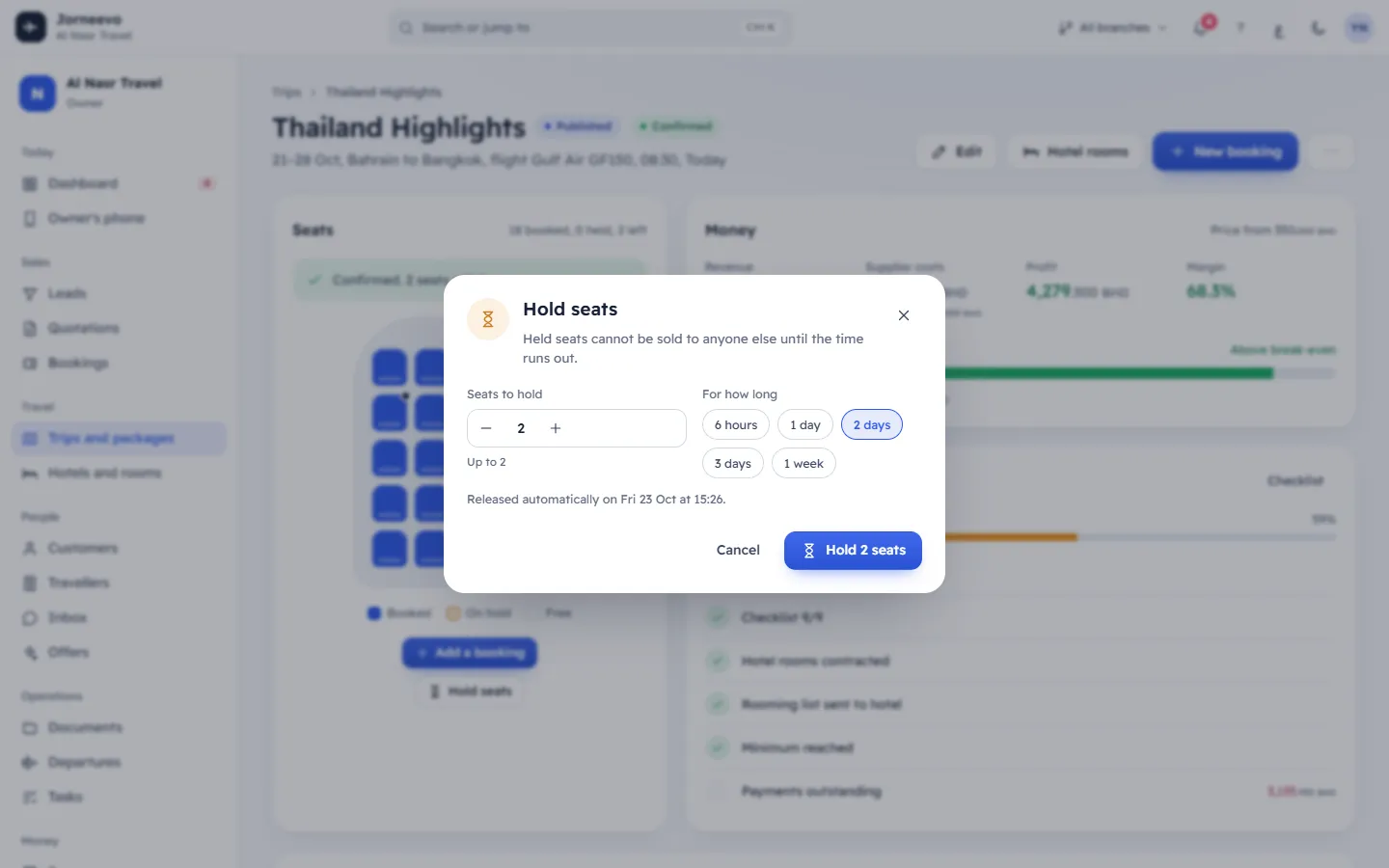
- Open the trip and press Hold seats on the Seats card (or More actions ⋮ → Hold seats). If seats are already held, the button reads Change hold.
- Set Seats to hold with the counter. The hint shows the most you can hold: the seats not sold yet.
- Choose For how long. The window shows "Released automatically on … at …".
- Press Hold 4 seats (the button shows your number).
After you hold seats
- The held seats turn amber (On hold) in the cabin, and "Held until …" shows under it.
- The message says until when they are held and that they release themselves if unpaid.
- The seats free themselves when the time runs out. The system checks every minute.
- The History tab records "4 seats held for 48 hours".
Release seats early
- Press Release holds on the Seats card, or open Change hold, set Seats to hold to 0 (Zero seats releases the current hold.) and press Release holds.
- The message Holds released appears.
Note
A trip has one hold at a time. Change hold replaces it: the new number and time count from now. To give the held seats to a customer, release the hold first, then create the booking.
If something goes wrong
- "Only 3 seats can be held": you asked for more seats than are still unsold.
- "Seats cannot be held on a cancelled or completed trip": the trip is no longer on sale.
Related articles
- Seats, holds and the minimum group sizeHow seats sold, held and left are counted, when a traveller counts toward the minimum, and what Full and Below minimum mean.
- The trip pageOne trip or package on one page: the seats, the money and break-even, how ready it is, and tabs for bookings, documents, rooms, costs and tasks.
- Create a bookingBook a customer on a published trip in three steps, take the deposit and send the confirmation, in about a minute.