The Trips screen
See every group trip and package with live seats, the minimum, the status, the price from and how ready it is to depart.
Trips lists the group trips and packages you sell, with the seats sold, held and left updated as bookings come in. Open it from the menu: Trips and packages.
What you see
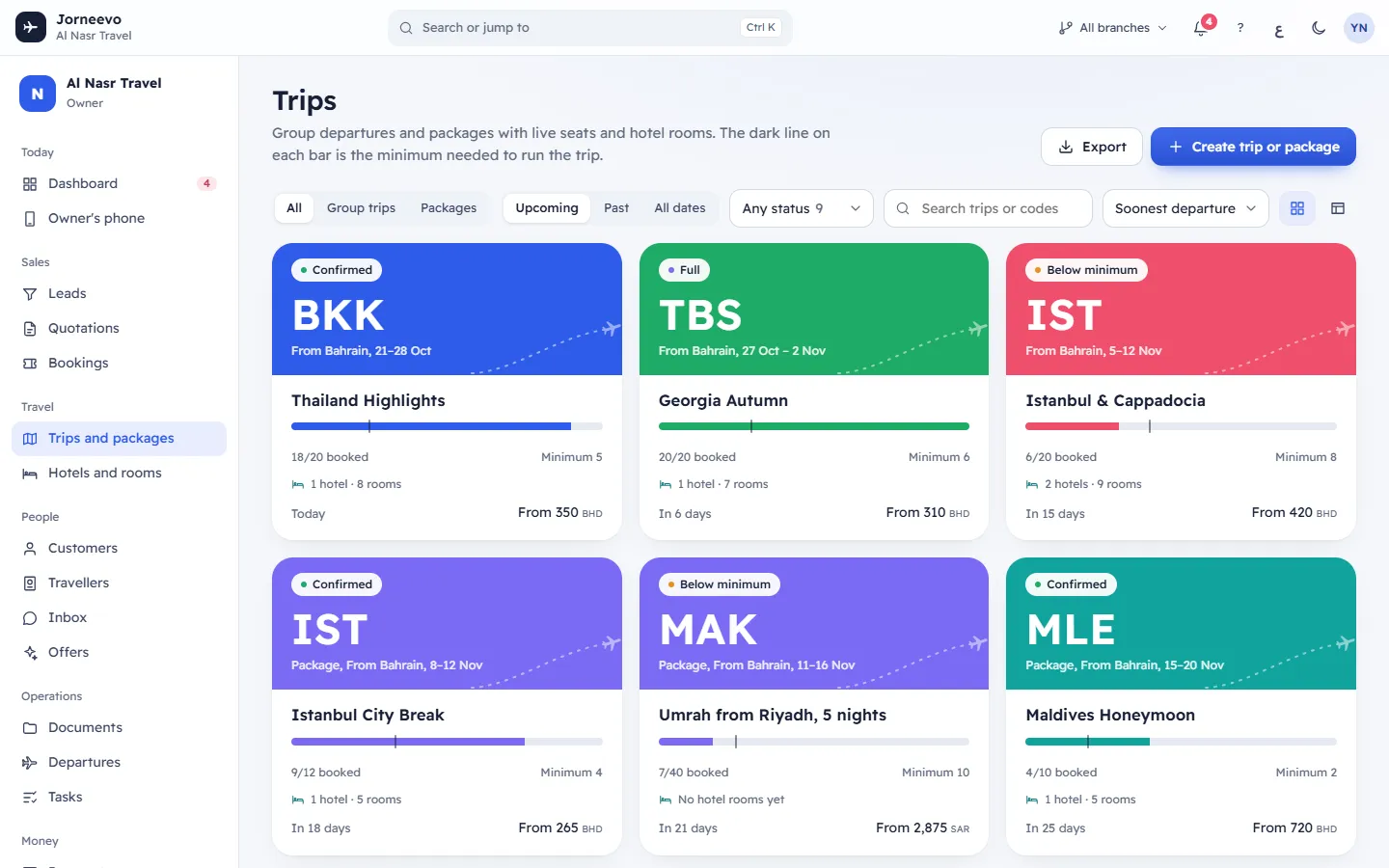
At the top, the title Trips and one line: the dark line on each capacity bar is the minimum needed to run the trip.
The filter bar
- All, Group trips, Packages: the kind of trip. Services (a trip made from a custom quotation) show under All.
- Upcoming (the default: trips that have not come back yet), Past or All dates.
- Status: Any status, On sale, Draft, Closed for sale, Completed or Cancelled. Each choice shows how many trips it has.
- Search trips or codes: searches the name in English and Arabic, the code and the destination. Press
/to jump to it. - Sort: Soonest departure (or Latest departure when you look at Past), Fullest first, Newest first or Name.
- Cards or List: how the trips are shown.
The screen remembers your filters, sort and view in this browser.
Cards. Each card shows:
- the state chip (see below), the big code (often the airport), the kind and From your home country;
- the dates and the name;
- the capacity bar: sold seats, held seats and the dark minimum marker, with the line "18/20 booked" and the held seats if any;
- Minimum and the number;
- the hotels and contracted rooms, or No hotel rooms yet;
- when it leaves ("in 6 days", Today) and the price From.
List. A table with the columns Trip, Dates, Seats, Status, From and Ready. Click a row
(or press Enter on it) to open the trip.
At the bottom, "Showing 9 of 9 trips" and Show more when there are more than 24. More trips also load as you scroll.
The state chip
| Chip | Meaning |
|---|---|
| Confirmed | On sale and at or above the minimum to run. |
| Below minimum | On sale but fewer travellers than the minimum. |
| Full | Every seat is sold. New sales close by themselves. |
| Draft | Not on sale yet. |
| Closed | Sales are closed; existing bookings stay. |
| Completed | The trip is over. |
| Cancelled | The trip was cancelled. |
What the numbers mean
- From: the cheapest price option of the same traveller type as the default option (usually adults). Without price options, the base price.
- Ready: the average of two things: how many travel documents are in, and how much of the checklist is done.
- Revenue, collected and outstanding money appear only if your role can see payments, profit or reports.
What you can do here
- Create trip or package (or press
N): see Create a group trip or a package. - Export: downloads the filtered list as an Excel file, with Arabic headings when the screen is in Arabic. The message Trips downloading for Excel appears. The money columns are included only if your role can see payments or profit. The button is off when the list is empty.
- Open a trip to manage it: see The trip page.
Note
If your role is limited to some branches, you see the trips of your branches and the trips that have no branch.
When the list is empty
- No trips yet: create your first trip with Create trip.
- No trips match these filters: press Clear filters, or try another status or date range.
- Trips could not load: check your connection and press Try again.
Related articles
- Create a group trip or a packageBuild a trip from its parts: dates, seats and minimum, flights, what is included, prices, documents and the day-by-day plan.
- The trip pageOne trip or package on one page: the seats, the money and break-even, how ready it is, and tabs for bookings, documents, rooms, costs and tasks.
- Seats, holds and the minimum group sizeHow seats sold, held and left are counted, when a traveller counts toward the minimum, and what Full and Below minimum mean.
- Group trips, packages and servicesThe three kinds of trip, what each is for, and how the kind changes the cards, filters and checklists.