Create a group trip or a package
Build a trip from its parts: dates, seats and minimum, flights, what is included, prices, documents and the day-by-day plan.
Create a trip for every departure you sell: a group trip with a fixed date, or a package. The same editor opens when you press Edit on a trip, so these steps also explain how to change one.
Before you start
- You need permission to manage trips.
- The editor's lists come from Settings → Lists: cities, airlines, traveller types, room types, trip components and document types. Add what is missing there first.
- Your plan may limit how many new trips you create each month.
Steps
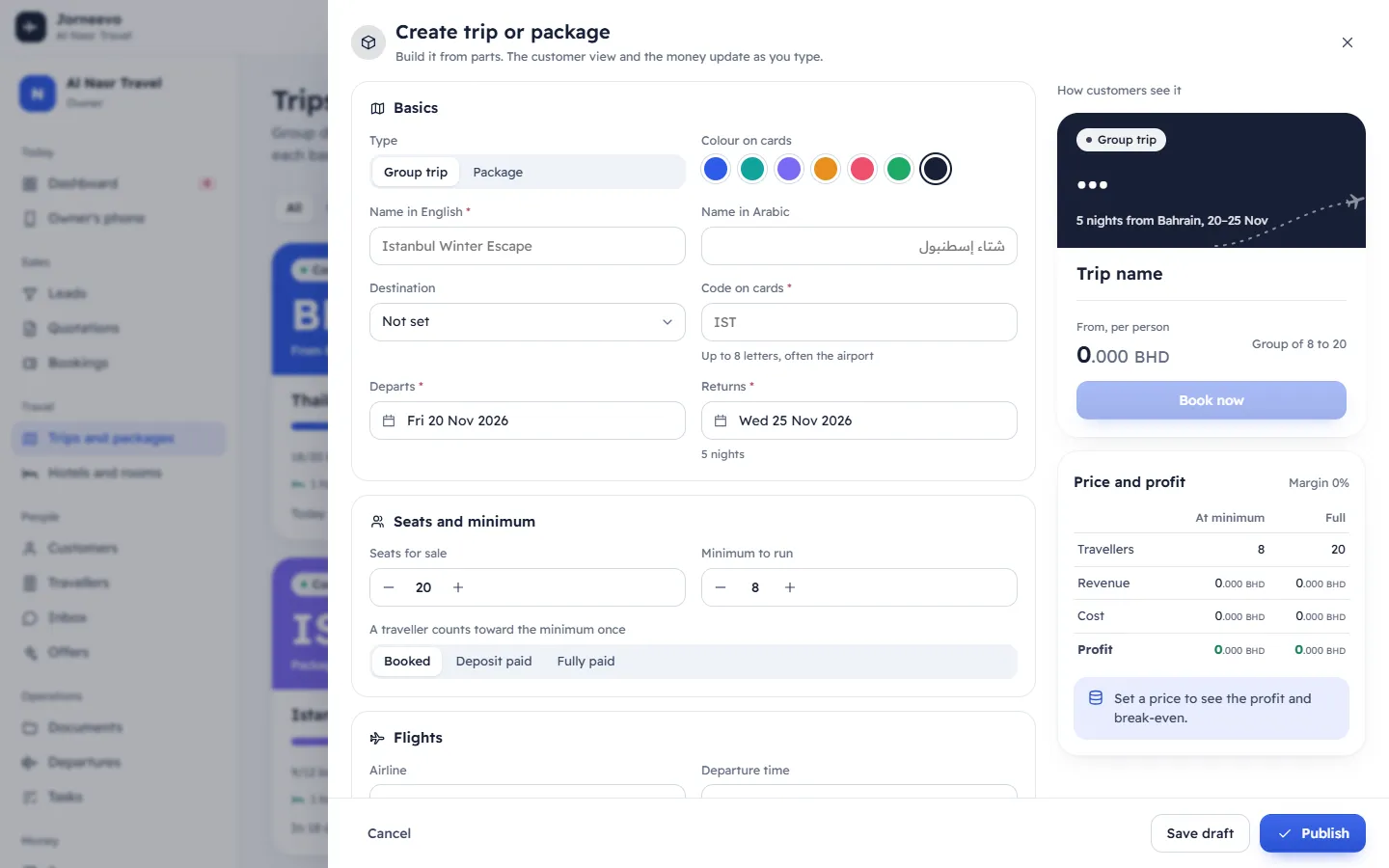
- Open Trips and packages and press Create trip or package (or press
N). The Create trip or package panel opens. On the side, How customers see it and Price and profit update as you type. - Under Basics, choose the Type: Group trip or Package. Pick a Colour on cards.
- Type the Name in English and, if you like, the Name in Arabic. Choose the Destination. When you choose it, the Code on cards fills with the city code; change it if you want (up to 8 letters, often the airport).
- Set Departs and Returns. The hint shows the number of nights. A new trip starts 30 days from today and lasts 5 days. If you sold this destination before, the editor offers Last trip to this destination: … Copy its details: press it to start from that trip, then check the dates and prices.
- Under Seats and minimum, set Seats for sale (1 to 500) and Minimum to run. Choose when A traveller counts toward the minimum once: Booked, Deposit paid or Fully paid.
- Under Flights, choose the Airline and type the Departure time, Flight out and Flight back (for example GF217). All are optional.
- Under What’s included, tap each part to switch it between Included, Optional and Not offered.
- Under Prices, set the price options, the currency and the costs. See Set price options (variants) and Branch, currency and tax on a trip.
- Under Documents each traveller needs, tick the documents (passport, visa …). They drive the documents table and the readiness.
- Under Day by day, add a row for each day (in English and Arabic) with Add day. Write a short Description that customers read before booking.
- Press Save draft to keep it off sale, or Publish to put it on sale now. When you edit a trip, the buttons are Save changes and Save and publish.
After you save
- The trip page opens. A draft shows Draft saved. It stays here until you publish.; a published trip shows Published. It is now on sale.
- Each traveller type gets a price option. If you entered none, an adult option at the base price is created.
- The trip's checklist is created from your task templates, with due dates counted back from the departure. See Build a trip checklist from templates.
- The History tab records "Trip … created".
Note
If Save and publish saves the trip but cannot publish it, you see Saved as a draft. It could not be published yet. Usually the trip has no price yet: add one and publish again.
If something goes wrong
- Some fields need attention: the marked fields are missing or wrong.
- Name the trip: type the English name.
- Add a short code: the code is empty.
- Return is before departure / The return date is before the departure date: fix the dates.
- Minimum is above the seats / The minimum is above the number of seats: lower the minimum or add seats.
- "18 seats are already sold. Capacity cannot go below that.": you cannot set fewer seats than are sold.
- Choose a currency from the list: pick the price currency from the list.
- Set a price before publishing: give the base price or a price option a value above zero.
- Your … plan allows … new trips a month: you reached your plan's limit. Upgrade in Settings → Plan and billing, or wait for next month.
Related articles
- Set price options (variants)Sell one trip at several prices, such as adult in a double room, adult in a triple room and child, and choose the default for each traveller type.
- Publish, close, reopen or unpublish a tripPut a trip on sale, stop new sales, open them again, take a trip back to draft or mark it completed.
- Group trips, packages and servicesThe three kinds of trip, what each is for, and how the kind changes the cards, filters and checklists.
- Branch, currency and tax on a tripWhich branch sells a trip, the currency of its prices and its tax rule, and why they cannot change once the trip has bookings.
- Build a trip checklist from templatesEvery new trip gets its checklist from your templates, with due dates counted back from departure. Add templates made later with Apply templates.