The Payments screen
Everything about money in one screen: payments received, balances still owed, payment links, invoices, transfers to confirm and the gateway checks.
Payments shows the money that came in, the money customers still owe, and the papers that go with it. The finance team works here every day; sales staff use it to follow up balances.
What you see
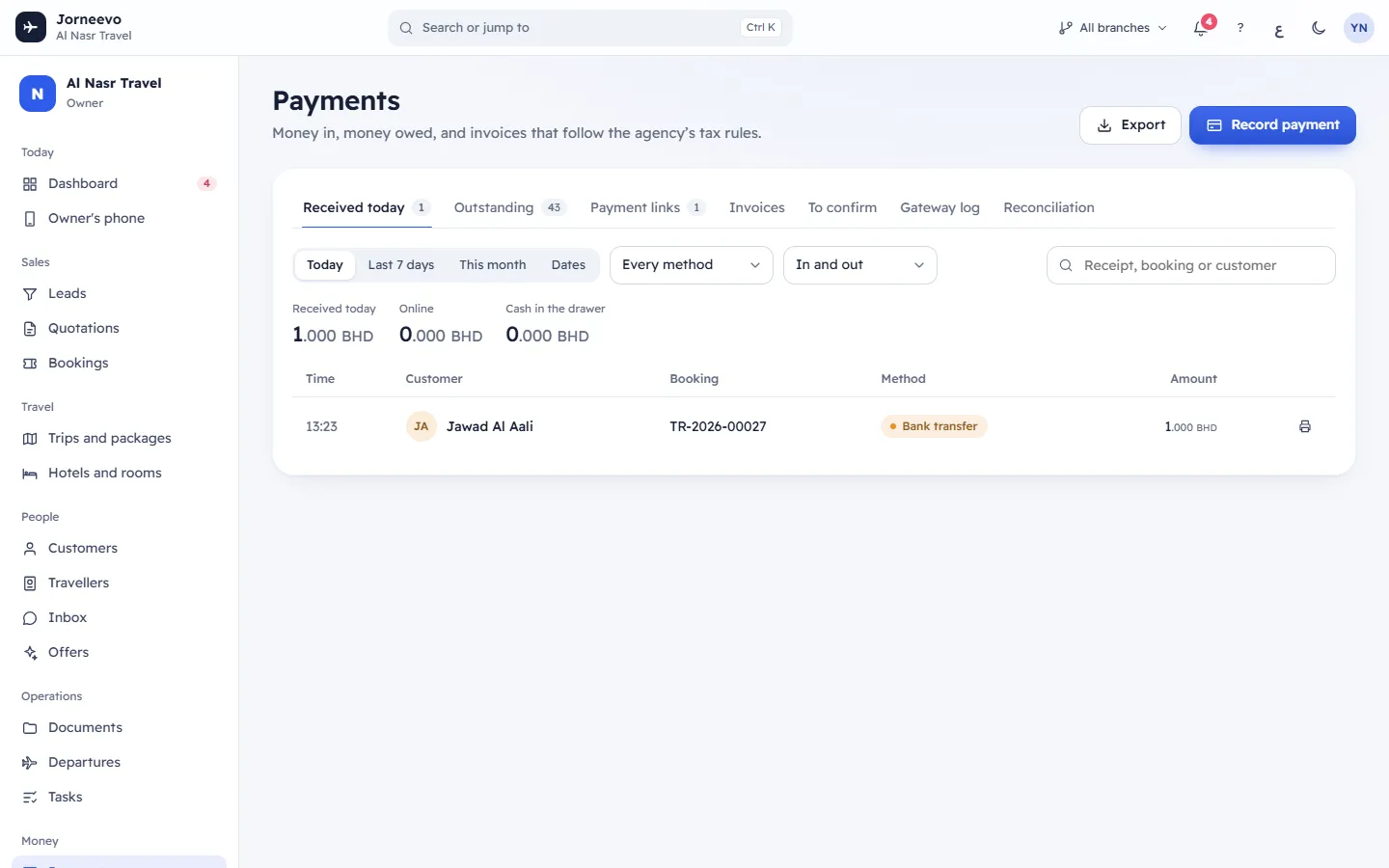
At the top: Export (on the Received and Outstanding tabs) and Record payment. Below them, the tabs. The screen opens on the tab you used last. You only see the tabs your role allows.
Received today / Received
The payments and refunds recorded in a period. The tab is called Received today while the period is today.
- Period: Today, Last 7 days, This month or Dates (then From and To; neither can be after today).
- Method: Every method or one payment method. Kind: In and out, Payments or Refunds. The period, method and kind are remembered for you.
- Search: Receipt, booking or customer.
- Totals for what is shown, in the agency's main currency: Received (payments minus refunds), Online, Cash in the drawer (payments made with the cash method) and Refunded. Online and Cash in the drawer show when no method is chosen.
- The table: Time (or Date for more than one day), Customer, Booking, Method (a refund also shows Refund), Amount (refunds in red, as a minus) and a printer button to Print receipt. Click a row to open the booking. Press Show more to load more rows.
Outstanding
Every confirmed booking that still owes money, the earliest due first, so overdue balances are at the top.
- Owed on these bookings and Overdue: the totals of what is listed.
- Search: Search a name or booking number.
- Remind everyone overdue: sends the payment reminder to every overdue customer, after you confirm.
- Tick rows (or Select all shown) to send Remind to the ticked customers only; Clear removes the ticks.
- Each row: the customer, the booking number, when it is due (for example overdue 3 days or due today), the trip and the balance, with Remind (it becomes Reminded after sending), Link and Record balance.
- At the bottom: how many open balances there are and how many are overdue.
Payment links
The payment links you created, with Open, Paid, Expired, Cancelled or All (your choice is remembered) and the Total of the list. Columns: Customer, Booking (and trip), Status, Expires (or Paid on the Paid filter), Amount. An open link has Copy link and Cancel link.
Invoices
Tax invoices, credit notes and debit notes: All, Invoices, Credit notes or Debit notes, and a search for Number or customer. Pick one on the left to see it on the right, with Print or save PDF, Issue credit note and Booking. See Issue an invoice.
To confirm
Transfers that customers reported from their trip page, or that a colleague entered, waiting for someone to check the bank account. The tab shows how many are waiting. See Confirm a transfer the customer reported.
Gateway log and Reconciliation
Every call to your payment gateway, and a comparison of what the gateway took with what is in the books. See Check a call in the gateway log and Reconcile online payments with the gateway.
Note
If your role is limited to one branch, every tab shows only the payments and bookings of your branch.
What you can do here
- Record a payment for any booking with a balance: Record a payment.
- Remind customers and send payment links: Send a payment link or a reminder.
- Approve or reject reported transfers: Confirm a transfer the customer reported.
- Print a receipt: Print a receipt.
- Export payments or open balances to Excel: Export payments and open balances.
- Check online payments against the gateway: Reconcile online payments with the gateway.
Who sees what
| Tab | Needs |
|---|---|
| Received, Outstanding, Payment links | See payments |
| Invoices | See payments, or Issue invoices and credit notes |
| To confirm | See payments; the Approve and Reject buttons need Approve transfers customers report |
| Gateway log, Reconciliation | See the gateway log and reconciliation |
Keyboard: press / to jump to the search box of the tab you are on, and Enter on a row of Received to open its booking.
Related articles
- Record a paymentAdd a payment the customer made in cash, by card machine or by bank transfer, and send them the receipt.
- Send a payment link or a reminderRemind one customer or many about their balance, with a secure payment link they can pay by card.
- Confirm a transfer the customer reportedCheck a bank transfer a customer reported with the slip, then approve it to record the payment, or reject it with a reason.
- Reconcile online payments with the gatewayCompare what your payment gateway collected with what is recorded on bookings, fix each difference and check the daily settlement.
- Export payments and open balancesDownload to Excel the payments received in a period, the balances customers still owe, or a list of bookings.