The top bar, menu and activity panel
Everything around your screens: the side menu and its badges, search, help, language, dark mode, the bell and your account menu.
The menu and the top bar frame every screen of the agency app. They stay the same wherever you are, so you can search, get help or switch language from any screen.
What you see
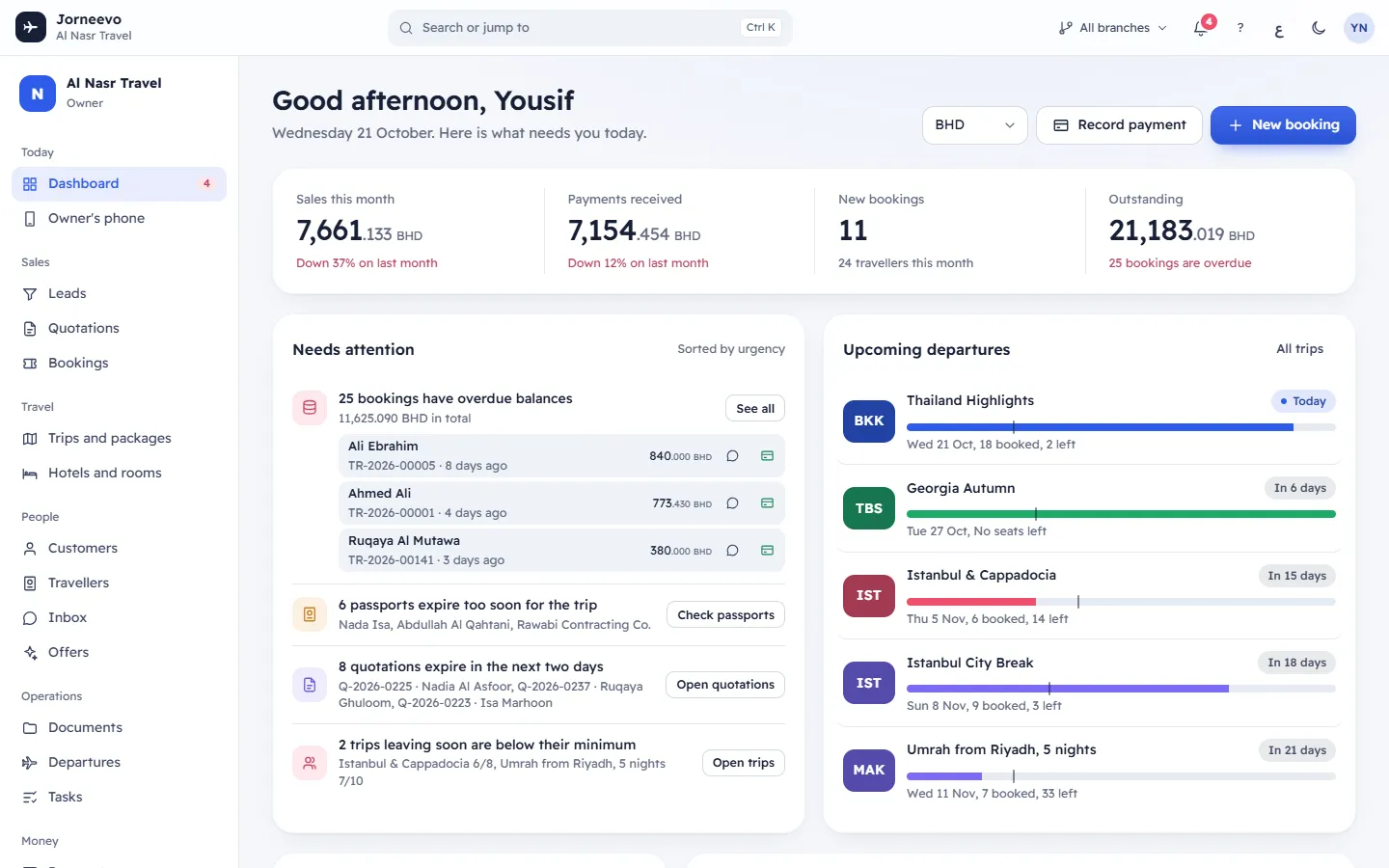
The side menu
At the top of the menu: your agency's logo and name, and your role.
Under it you may see two notes:
- Trial: N days left on the … plan. while the agency is on a free trial, or, for a moment after it ends, Your trial has ended. Your plan and first invoice are being set up now.
- Finish setting up with Step N of 5, while the agency's setup is not finished. Only people who can change settings see it. Press it to continue the setup where you left off.
Then the screens, in groups:
| Group | Screens |
|---|---|
| Today | Dashboard, Owner's phone |
| Sales | Leads, Quotations, Bookings |
| Travel | Trips and packages, Hotels and rooms |
| People | Customers, Travellers, Inbox, Offers |
| Operations | Documents, Departures, Tasks |
| Money | Payments, E-invoices (only when the agency has a branch in Saudi Arabia), Suppliers and profit |
| Insights | Reports |
| Setup | Settings, Team and roles, Help |
You only see the screens your role allows. A group with no screen for you is hidden.
Three menu items can show a number (a badge):
- Dashboard: how many alerts need attention (overdue balances, passports, expiring quotations and so on), the same number as the bell.
- Inbox: how many customer chats have unread messages. It refreshes every 30 seconds.
- Tasks: how many open tasks are overdue.
At the bottom of the menu: Collapse the menu (on a computer) and your name, which opens My account.
The top bar
From the start of the bar to the end:
- The system's logo with your agency's name: press it to go back to the Dashboard.
- Search or jump to (
Ctrl K,Cmd Kon a Mac): search records and screens. See Search or jump anywhere with Ctrl K. - The branch button, Branch shown: only when you can see two or more branches. See Switch the branch you are viewing.
- The bell, Activity: opens the activity panel. The bell shows how many alerts there are (9+ above nine). One alert can cover several records, for example "3 bookings have overdue balances".
- ?, Help for this screen: opens the help articles for the screen you are on, in a side panel. The keys
?andF1do the same. - ع (or EN on the Arabic screen): switches the language.
- The moon or the sun, Light or dark: switches between the light and the dark look.
- Your initials: the account menu.
On a phone, the menu is hidden. Press Menu at the top to open it, and Close the menu (or Esc) to close it.
The activity panel
Press the bell to open Activity, What your team did:
- First the alerts, each marked Needs attention. Press one to open the list or record behind it.
- Then Recent activity: the last 60 things your team did, with who did it and when. Press a line to open the record.
- Nothing yet when there is nothing to show. The activity could not be loaded. with Try again if the list could not load.
Alerts refresh every two minutes and when you come back to the window.
The account menu
Press your initials to see your name, email and role, and:
- My account and security: your profile, language, password and two-step sign-in.
- Platform admin: only for platform staff who are inside an agency.
- Sign out.
What you can do here
- Find anything fast: Search or jump anywhere with Ctrl K.
- Work in one branch: Switch the branch you are viewing.
- Change language, dark mode and the menu width: Language, dark mode and menu layout.
- Read the bars that can appear above the screen: Banners at the top of the screen.
Tip
When you use the keyboard, the first Tab on a page shows Skip to content. Press Enter to jump past the
menu to the screen itself.
The browser tab shows the screen, the agency and the system's name, so you can tell your open tabs apart.
Related articles
- Search or jump anywhere with Ctrl KFind a booking, customer, trip, quotation, lead, hotel or traveller by name, number or mobile, or open any screen, from anywhere.
- Switch the branch you are viewingNarrow bookings, trips, payments, invoices, reports and the dashboard to one branch, or see all branches together.
- Language, dark mode and menu layoutSwitch between Arabic and English, light and dark, and a full or slim menu. Each person chooses for themselves; customers get their own language.
- Banners at the top of the screenThe bars that can appear above every screen, trial, overdue subscription, paused account, support mode and announcements, and what to do about each.
- How the app is organisedWhat each screen is for, how a lead becomes a quotation, a booking, payments and an invoice, and the patterns every screen shares.